Getting Started with Shadcn/Vue
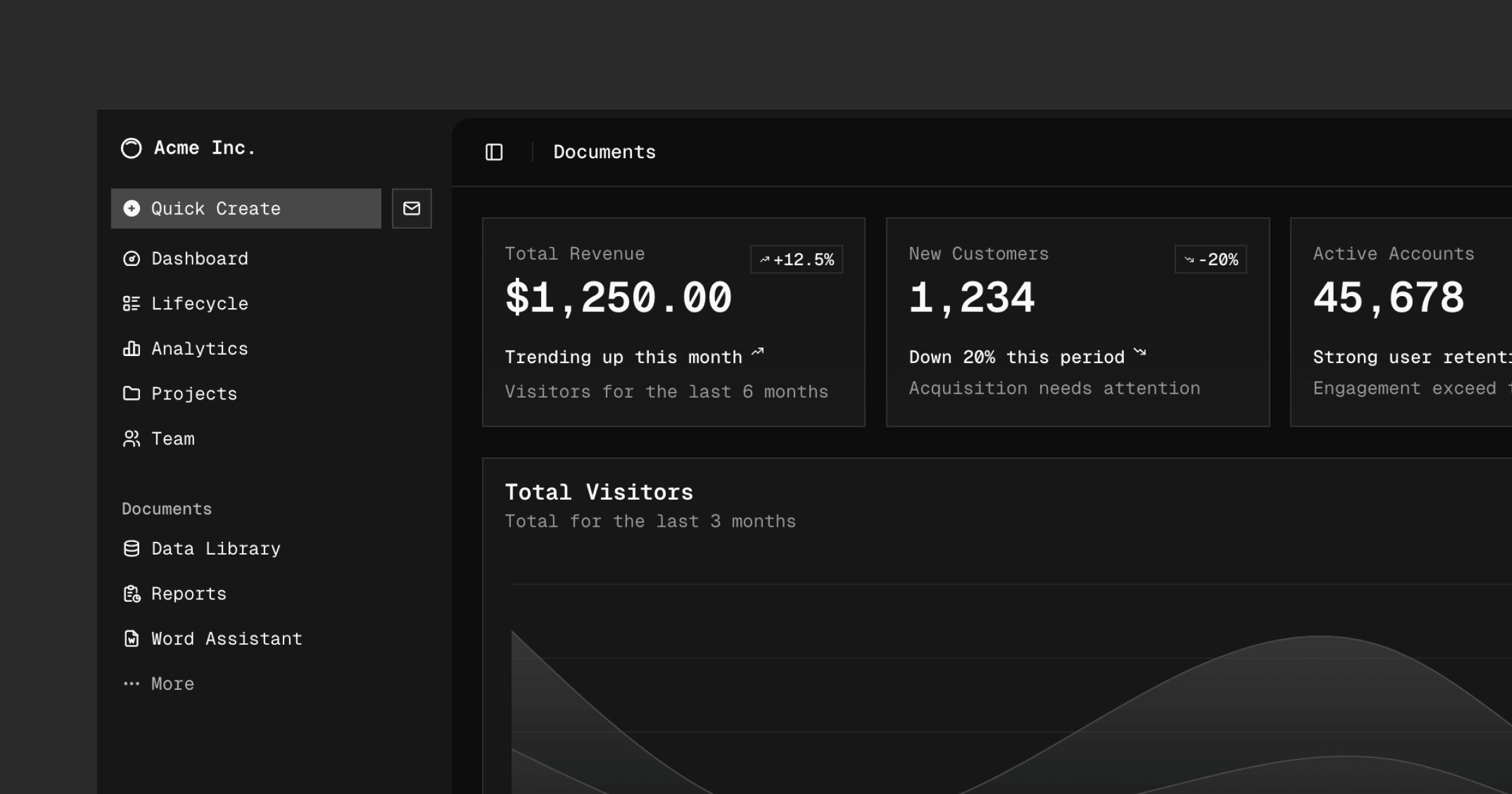
Why shadcn/vue?
Own Your Code
Components are copied into your codebase, not installed as dependencies
Fully Customizable
Modify any component to match your exact design requirements
Accessible by Default
Built on Radix Vue primitives with full keyboard and screen reader support
Installation
With Nuxt
Use the shadcn-nuxt module:
npx nuxi@latest module add shadcn-nuxt
Configure in nuxt.config.ts:
export default defineNuxtConfig({
  modules: ["shadcn-nuxt"],
  shadcn: {
    prefix: "",
    componentDir: "./components/ui",
  },
})
Initialize shadcn/vue:
npx shadcn-vue@latest init
With Vue + Vite
npx shadcn-vue@latest init
Follow the prompts to configure:
- TypeScript: Yes
- Framework: Vite
- Style: Default or New York
- Base color: Slate, Gray, Zinc, etc.
- CSS variables: Yes
Adding Components
Add components as needed:
# Add individual components
npx shadcn-vue@latest add button
npx shadcn-vue@latest add input
npx shadcn-vue@latest add card

# Add multiple components
npx shadcn-vue@latest add button card input dialog
Components are added to your components/ui directory.
Basic Components
Button
<script setup>
  import { Button } from "@/components/ui/button"
</script>

<template>
  <div class="flex gap-2">
    <Button>Default</Button>
    <Button variant="secondary">Secondary</Button>
    <Button variant="destructive">Destructive</Button>
    <Button variant="outline">Outline</Button>
    <Button variant="ghost">Ghost</Button>
    <Button variant="link">Link</Button>
  </div>
</template>
Button Sizes and Icons
<script setup>
  import { Button } from "@/components/ui/button"
  import { Plus, Trash2, Loader2 } from "lucide-vue-next"
</script>

<template>
  <div class="flex items-center gap-2">
    <Button size="sm">Small</Button>
    <Button size="default">Default</Button>
    <Button size="lg">Large</Button>
    <Button size="icon"><Plus class="h-4 w-4" /></Button>
  </div>

  <div class="mt-4 flex gap-2">
    <Button><Plus class="mr-2 h-4 w-4" /> Add Item</Button>
    <Button variant="destructive"><Trash2 class="mr-2 h-4 w-4" /> Delete</Button>
    <Button disabled><Loader2 class="mr-2 h-4 w-4 animate-spin" /> Loading</Button>
  </div>
</template>
Input
<script setup>
  import { Input } from "@/components/ui/input"
  import { Label } from "@/components/ui/label"

  const email = ref("")
</script>

<template>
  <div class="grid gap-2">
    <Label for="email">Email</Label>
    <Input id="email" v-model="email" type="email" placeholder="Enter your email" />
  </div>
</template>
Card
<script setup>
  import {
    Card,
    CardContent,
    CardDescription,
    CardFooter,
    CardHeader,
    CardTitle,
  } from "@/components/ui/card"
  import { Button } from "@/components/ui/button"
</script>

<template>
  <Card class="w-[350px]">
    <CardHeader>
      <CardTitle>Card Title</CardTitle>
      <CardDescription>Card description goes here.</CardDescription>
    </CardHeader>
    <CardContent>
      <p>Card content with any components or text.</p>
    </CardContent>
    <CardFooter class="flex justify-between">
      <Button variant="outline">Cancel</Button>
      <Button>Save</Button>
    </CardFooter>
  </Card>
</template>
Form Components
Select
npx shadcn-vue@latest add select
<script setup>
  import {
    Select,
    SelectContent,
    SelectItem,
    SelectTrigger,
    SelectValue,
  } from "@/components/ui/select"

  const selected = ref("")
</script>

<template>
  <Select v-model="selected">
    <SelectTrigger class="w-[180px]">
      <SelectValue placeholder="Select a fruit" />
    </SelectTrigger>
    <SelectContent>
      <SelectItem value="apple">Apple</SelectItem>
      <SelectItem value="banana">Banana</SelectItem>
      <SelectItem value="orange">Orange</SelectItem>
    </SelectContent>
  </Select>
</template>
Checkbox
npx shadcn-vue@latest add checkbox
<script setup>
  import { Checkbox } from "@/components/ui/checkbox"
  import { Label } from "@/components/ui/label"

  const checked = ref(false)
</script>

<template>
  <div class="flex items-center space-x-2">
    <Checkbox id="terms" v-model:checked="checked" />
    <Label for="terms">Accept terms and conditions</Label>
  </div>
</template>
Switch
npx shadcn-vue@latest add switch
<script setup>
  import { Switch } from "@/components/ui/switch"
  import { Label } from "@/components/ui/label"

  const enabled = ref(false)
</script>

<template>
  <div class="flex items-center space-x-2">
    <Switch id="notifications" v-model:checked="enabled" />
    <Label for="notifications">Enable notifications</Label>
  </div>
</template>
Form Validation
Use with vee-validate and zod:
npm install vee-validate @vee-validate/zod zod
npx shadcn-vue@latest add form
<script setup>
  import { useForm } from "vee-validate"
  import { toTypedSchema } from "@vee-validate/zod"
  import * as z from "zod"
  import { Button } from "@/components/ui/button"
  import { FormControl, FormField, FormItem, FormLabel, FormMessage } from "@/components/ui/form"
  import { Input } from "@/components/ui/input"

  const formSchema = toTypedSchema(
    z.object({
      name: z.string().min(2, "Name must be at least 2 characters"),
      email: z.string().email("Invalid email address"),
    })
  )

  const { handleSubmit } = useForm({
    validationSchema: formSchema,
  })

  const onSubmit = handleSubmit((values) => {
    console.log("Form submitted:", values)
  })
</script>

<template>
  <form @submit="onSubmit" class="space-y-4">
    <FormField v-slot="{ componentField }" name="name">
      <FormItem>
        <FormLabel>Name</FormLabel>
        <FormControl>
          <Input placeholder="Enter your name" v-bind="componentField" />
        </FormControl>
        <FormMessage />
      </FormItem>
    </FormField>

    <FormField v-slot="{ componentField }" name="email">
      <FormItem>
        <FormLabel>Email</FormLabel>
        <FormControl>
          <Input type="email" placeholder="Enter your email" v-bind="componentField" />
        </FormControl>
        <FormMessage />
      </FormItem>
    </FormField>

    <Button type="submit">Submit</Button>
  </form>
</template>
Icons
shadcn/vue uses Lucide icons:
npm install lucide-vue-next
<script setup>
  import { Home, User, Settings, Heart, Star, Search } from "lucide-vue-next"
</script>

<template>
  <div class="flex gap-4">
    <Home class="h-6 w-6" />
    <User class="h-6 w-6" />
    <Settings class="h-6 w-6" />
    <Heart class="h-6 w-6 text-red-500" />
    <Star class="h-6 w-6 text-yellow-500" />
  </div>
</template>
Theming
shadcn/vue uses CSS variables for theming. Configure in your CSS:
/* globals.css */
@layer base {
  :root {
    --background: 0 0% 100%;
    --foreground: 222.2 84% 4.9%;
    --card: 0 0% 100%;
    --card-foreground: 222.2 84% 4.9%;
    --primary: 222.2 47.4% 11.2%;
    --primary-foreground: 210 40% 98%;
    --secondary: 210 40% 96.1%;
    --secondary-foreground: 222.2 47.4% 11.2%;
    --muted: 210 40% 96.1%;
    --muted-foreground: 215.4 16.3% 46.9%;
    --accent: 210 40% 96.1%;
    --accent-foreground: 222.2 47.4% 11.2%;
    --destructive: 0 84.2% 60.2%;
    --destructive-foreground: 210 40% 98%;
    --border: 214.3 31.8% 91.4%;
    --input: 214.3 31.8% 91.4%;
    --ring: 222.2 84% 4.9%;
    --radius: 0.5rem;
  }

  .dark {
    --background: 222.2 84% 4.9%;
    --foreground: 210 40% 98%;
    --card: 222.2 84% 4.9%;
    --card-foreground: 210 40% 98%;
    --primary: 210 40% 98%;
    --primary-foreground: 222.2 47.4% 11.2%;
    --secondary: 217.2 32.6% 17.5%;
    --secondary-foreground: 210 40% 98%;
    --muted: 217.2 32.6% 17.5%;
    --muted-foreground: 215 20.2% 65.1%;
    --accent: 217.2 32.6% 17.5%;
    --accent-foreground: 210 40% 98%;
    --destructive: 0 62.8% 30.6%;
    --destructive-foreground: 210 40% 98%;
    --border: 217.2 32.6% 17.5%;
    --input: 217.2 32.6% 17.5%;
    --ring: 212.7 26.8% 83.9%;
  }
}
Changing Primary Color
Update the primary color variables:
:root {
  --primary: 142.1 76.2% 36.3%; /* Green */
  --primary-foreground: 355.7 100% 97.3%;
}
Dark Mode
Toggle dark mode with a class on the HTML element:
<script setup>
  import { Button } from "@/components/ui/button"
  import { Moon, Sun } from "lucide-vue-next"

  const isDark = ref(false)

  function toggleDarkMode() {
    isDark.value = !isDark.value
    document.documentElement.classList.toggle("dark", isDark.value)
  }
</script>

<template>
  <Button variant="ghost" size="icon" @click="toggleDarkMode">
    <Sun v-if="isDark" class="h-5 w-5" />
    <Moon v-else class="h-5 w-5" />
  </Button>
</template>
With Nuxt Color Mode
<script setup>
  import { Button } from "@/components/ui/button"
  import { Moon, Sun } from "lucide-vue-next"

  const colorMode = useColorMode()

  function toggleDarkMode() {
    colorMode.preference = colorMode.value === "dark" ? "light" : "dark"
  }
</script>

<template>
  <Button variant="ghost" size="icon" @click="toggleDarkMode">
    <Sun v-if="colorMode.value === 'dark'" class="h-5 w-5" />
    <Moon v-else class="h-5 w-5" />
  </Button>
</template>
Navigation Components
Navigation Menu
npx shadcn-vue@latest add navigation-menu
<script setup>
  import {
    NavigationMenu,
    NavigationMenuContent,
    NavigationMenuItem,
    NavigationMenuLink,
    NavigationMenuList,
    NavigationMenuTrigger,
  } from "@/components/ui/navigation-menu"
</script>

<template>
  <NavigationMenu>
    <NavigationMenuList>
      <NavigationMenuItem>
        <NavigationMenuTrigger>Getting Started</NavigationMenuTrigger>
        <NavigationMenuContent>
          <ul class="grid w-[400px] gap-3 p-4">
            <li>
              <NavigationMenuLink as-child>
                <a href="/docs">Introduction</a>
              </NavigationMenuLink>
            </li>
            <li>
              <NavigationMenuLink as-child>
                <a href="/docs/installation">Installation</a>
              </NavigationMenuLink>
            </li>
          </ul>
        </NavigationMenuContent>
      </NavigationMenuItem>
    </NavigationMenuList>
  </NavigationMenu>
</template>
Tabs
npx shadcn-vue@latest add tabs
<script setup>
  import { Tabs, TabsContent, TabsList, TabsTrigger } from "@/components/ui/tabs"
</script>

<template>
  <Tabs default-value="account" class="w-[400px]">
    <TabsList>
      <TabsTrigger value="account">Account</TabsTrigger>
      <TabsTrigger value="password">Password</TabsTrigger>
    </TabsList>
    <TabsContent value="account">
      <p>Account settings content here.</p>
    </TabsContent>
    <TabsContent value="password">
      <p>Password settings content here.</p>
    </TabsContent>
  </Tabs>
</template>
Breadcrumb
npx shadcn-vue@latest add breadcrumb
<script setup>
  import {
    Breadcrumb,
    BreadcrumbItem,
    BreadcrumbLink,
    BreadcrumbList,
    BreadcrumbPage,
    BreadcrumbSeparator,
  } from "@/components/ui/breadcrumb"
</script>

<template>
  <Breadcrumb>
    <BreadcrumbList>
      <BreadcrumbItem>
        <BreadcrumbLink href="/">Home</BreadcrumbLink>
      </BreadcrumbItem>
      <BreadcrumbSeparator />
      <BreadcrumbItem>
        <BreadcrumbLink href="/products">Products</BreadcrumbLink>
      </BreadcrumbItem>
      <BreadcrumbSeparator />
      <BreadcrumbItem>
        <BreadcrumbPage>Current Page</BreadcrumbPage>
      </BreadcrumbItem>
    </BreadcrumbList>
  </Breadcrumb>
</template>
Dialogs and Overlays
Dialog
npx shadcn-vue@latest add dialog
<script setup>
  import {
    Dialog,
    DialogContent,
    DialogDescription,
    DialogFooter,
    DialogHeader,
    DialogTitle,
    DialogTrigger,
  } from "@/components/ui/dialog"
  import { Button } from "@/components/ui/button"

  const open = ref(false)
</script>

<template>
  <Dialog v-model:open="open">
    <DialogTrigger as-child>
      <Button>Open Dialog</Button>
    </DialogTrigger>
    <DialogContent>
      <DialogHeader>
        <DialogTitle>Dialog Title</DialogTitle>
        <DialogDescription>Dialog description goes here.</DialogDescription>
      </DialogHeader>
      <p>Dialog content.</p>
      <DialogFooter>
        <Button variant="outline" @click="open = false">Cancel</Button>
        <Button @click="open = false">Save</Button>
      </DialogFooter>
    </DialogContent>
  </Dialog>
</template>
Alert Dialog
npx shadcn-vue@latest add alert-dialog
<script setup>
  import {
    AlertDialog,
    AlertDialogAction,
    AlertDialogCancel,
    AlertDialogContent,
    AlertDialogDescription,
    AlertDialogFooter,
    AlertDialogHeader,
    AlertDialogTitle,
    AlertDialogTrigger,
  } from "@/components/ui/alert-dialog"
  import { Button } from "@/components/ui/button"
</script>

<template>
  <AlertDialog>
    <AlertDialogTrigger as-child>
      <Button variant="destructive">Delete</Button>
    </AlertDialogTrigger>
    <AlertDialogContent>
      <AlertDialogHeader>
        <AlertDialogTitle>Are you sure?</AlertDialogTitle>
        <AlertDialogDescription>
          This action cannot be undone. This will permanently delete your account.
        </AlertDialogDescription>
      </AlertDialogHeader>
      <AlertDialogFooter>
        <AlertDialogCancel>Cancel</AlertDialogCancel>
        <AlertDialogAction>Delete</AlertDialogAction>
      </AlertDialogFooter>
    </AlertDialogContent>
  </AlertDialog>
</template>
Toast (Sonner)
npx shadcn-vue@latest add sonner
<script setup>
  import { Button } from "@/components/ui/button"
  import { toast } from "vue-sonner"

  function showToast() {
    toast.success("Changes saved", {
      description: "Your changes have been saved successfully.",
    })
  }

  function showError() {
    toast.error("Error", {
      description: "Something went wrong. Please try again.",
    })
  }
</script>

<template>
  <div class="flex gap-2">
    <Button @click="showToast">Show Toast</Button>
    <Button variant="destructive" @click="showError">Show Error</Button>
  </div>
</template>
Data Display
Table
npx shadcn-vue@latest add table
<script setup>
  import {
    Table,
    TableBody,
    TableCell,
    TableHead,
    TableHeader,
    TableRow,
  } from "@/components/ui/table"

  const users = [
    { id: 1, name: "Alice", email: "alice@example.com", role: "Admin" },
    { id: 2, name: "Bob", email: "bob@example.com", role: "User" },
    { id: 3, name: "Carol", email: "carol@example.com", role: "Editor" },
  ]
</script>

<template>
  <Table>
    <TableHeader>
      <TableRow>
        <TableHead>Name</TableHead>
        <TableHead>Email</TableHead>
        <TableHead>Role</TableHead>
      </TableRow>
    </TableHeader>
    <TableBody>
      <TableRow v-for="user in users" :key="user.id">
        <TableCell class="font-medium">{{ user.name }}</TableCell>
        <TableCell>{{ user.email }}</TableCell>
        <TableCell>{{ user.role }}</TableCell>
      </TableRow>
    </TableBody>
  </Table>
</template>
Badge
npx shadcn-vue@latest add badge
<script setup>
  import { Badge } from "@/components/ui/badge"
</script>

<template>
  <div class="flex gap-2">
    <Badge>Default</Badge>
    <Badge variant="secondary">Secondary</Badge>
    <Badge variant="outline">Outline</Badge>
    <Badge variant="destructive">Destructive</Badge>
  </div>
</template>
Avatar
npx shadcn-vue@latest add avatar
<script setup>
  import { Avatar, AvatarFallback, AvatarImage } from "@/components/ui/avatar"
</script>

<template>
  <div class="flex gap-4">
    <Avatar>
      <AvatarImage src="https://github.com/shadcn.png" alt="User" />
      <AvatarFallback>CN</AvatarFallback>
    </Avatar>
    <Avatar>
      <AvatarFallback>JD</AvatarFallback>
    </Avatar>
  </div>
</template>
Key Features
Copy & Paste
No npm dependency - components live in your codebase
Radix Vue
Built on accessible primitives with focus management and ARIA
Tailwind CSS
Style components with utility classes you already know